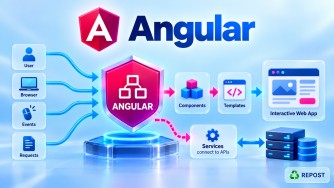


How Do You Build Angular for Production?
1. What is a Production Build in Angular?
A production build converts your Angular source code into optimized static files that can be deployed to a web server.
During development, you normally run:
ng serveFor production, you build the application:
ng buildWith the standard Angular CLI configuration, ng build uses the project's configured production build settings by default. You can also explicitly specify:
ng build --configuration productionThe result is written under the configured output directory, commonly:
dist/For example:
my-angular-app/
├── src/
├── angular.json
├── package.json
└── dist/
    └── my-angular-app/
        └── browser/
            ├── index.html
            ├── main-XXXXX.js
            ├── styles-XXXXX.css
            └── ...
The exact
diststructure depends on the Angular builder and whether you use CSR, SSR, or hybrid rendering.
2. Why Do We Need a Production Build?
The code you write in Angular is not normally deployed as your raw TypeScript source code.
For example, you write:
export class Products {
  title = 'Products';
}
Angular's build system processes your application and generates browser-ready assets such as:
index.html
main-XXXXX.js
styles-XXXXX.css
The production build performs optimizations such as:
- TypeScript compilation
- Angular template compilation
- Bundling
- Minification
- Tree shaking
- Dead-code elimination
- CSS optimization
- Asset processing
- Output hashing
- Code splitting where applicable
This makes the deployed application smaller and faster.
3. Full Simple Sample Program
Suppose we have an Angular standalone application that communicates with an ASP.NET Core Web API.
Project Structure
my-angular-app/
│
├── src/
│   ├── app/
│   │   ├── app.ts
│   │   └── app.html
│   │
│   ├── environments/
│   │   ├── environment.ts
│   │   └── environment.production.ts
│   │
│   ├── main.ts
│   └── index.html
│
├── angular.json
├── package.json
└── tsconfig.json
environment.ts
Development configuration:
export const environment = {
  production: false,
  apiUrl: 'https://localhost:7001/api'
};
environment.production.ts
Production configuration:
export const environment = {
  production: true,
  apiUrl: 'https://api.jntech.in/api'
};
Notice that the production application points to the production ASP.NET Core API.
app.ts
import { Component } from '@angular/core';
import { environment } from '../environments/environment';

@Component({
  selector: 'app-root',
  standalone: true,
  templateUrl: './app.html'
})
export class App {
  title = 'JN Tech';
  apiUrl = environment.apiUrl;
}
app.html
<h1>{{ title }}</h1>

<p>API URL:</p>

<p>{{ apiUrl }}</p>
main.ts
import { bootstrapApplication } from '@angular/platform-browser';
import { App } from './app/app';

bootstrapApplication(App)
  .catch(err => console.error(err));
angular.json
A simplified relevant section could look like:
{
  "projects": {
    "my-angular-app": {
      "architect": {
        "build": {
          "configurations": {
            "production": {
              "budgets": [
                {
                  "type": "initial",
                  "maximumWarning": "500kB",
                  "maximumError": "1MB"
                }
              ],
              "outputHashing": "all"
            },
            "development": {
              "optimization": false,
              "sourceMap": true
            }
          },
          "defaultConfiguration": "production"
        }
      }
    }
  }
}
The actual angular.json generated by your Angular CLI version can contain additional settings.
4. Build the Application
First install the project's dependencies:
npm installFor CI/CD environments, when package-lock.json is committed, you will commonly see:
npm ciThen create the production build:
ng buildOr explicitly:
ng build --configuration productionYou can also commonly run the package script:
npm run builddepending on your package.json.
5. What Happens When ng build Runs?
Consider:
ng build --configuration productionThe high-level flow is:
Angular Source Code
       ↓
TypeScript / Angular Compilation
       ↓
Bundling
       ↓
Tree Shaking
       ↓
Minification / Optimization
       ↓
Code Splitting
       ↓
Output Hashing
       ↓
dist/
Let's understand the important parts.
Step 1: Compilation
Angular compiles your TypeScript and Angular templates into browser-executable JavaScript.
Conceptually:
.ts
↓
JavaScript
For example:
export class App {
  title = 'JN Tech';
}
ultimately becomes part of the generated JavaScript bundles.
6. Bundling
Your application may contain hundreds of TypeScript files.
For example:
app.ts
product.ts
product.service.ts
auth.service.ts
auth.guard.ts
login.ts
dashboard.ts
The build system processes these modules into deployable bundles/chunks.
You might see files similar to:
main-HDKL82S.js
styles-PQ45ABC.css
chunk-X3AB12.js
You normally do not manually manage these generated files.
7. Minification
Production builds reduce the size of JavaScript and CSS.
Conceptually, readable development code such as:
function calculateTotal(price, quantity) {
  return price * quantity;
}
can be transformed into much more compact output.
The purpose is to reduce:
Download size
Network transfer
Parsing overhead
8. Tree Shaking
Tree shaking removes code that is not needed in the final application where the tooling can safely determine that it is unused.
For example:
export function add(a: number, b: number) {
  return a + b;
}

export function unusedFunction() {
  console.log('Never used');
}
If unusedFunction() is never used and can be eliminated safely, it does not need to remain in the final production bundle.
Conceptually:
Source
 ├── Used code       → Keep
 └── Unused code     → Remove
This helps reduce bundle size.
9. Output Hashing
Notice generated filenames such as:
main-A8F3D91.js
styles-B34DF12.css
instead of simply:
main.js
styles.css
The extra value is a content hash.
For example:
main-A8F3D91.js
     ↑
    hash
When the contents change, the filename can change.
This is very useful for browser caching.
Old:
main-A8F3D91.jsAfter a new deployment:
main-H72JDK8.jsThe browser sees a different URL and downloads the new version rather than incorrectly relying on an old cached bundle.
10. Code Splitting
Angular can split the application into multiple JavaScript chunks.
This is particularly useful with lazy loading.
For example:
export const routes: Routes = [
  {
    path: '',
    loadComponent: () =>
      import('./home/home').then(m => m.Home)
  },
  {
    path: 'products',
    loadComponent: () =>
      import('./products/products').then(m => m.Products)
  }
];
The products code can be placed in a separate chunk.
Conceptually:
Initial Application
      ↓
main.js
      ↓
User visits /products
      ↓
products chunk downloaded
Therefore, the browser doesn't necessarily have to download every feature during the initial page load.
11. Development vs Production Build
A useful simplified comparison is:
| Development | Production |
|---|---|
| Optimized for developer experience | Optimized for deployment |
| Source maps commonly enabled | Source-map behavior depends on configuration |
| Less optimization | Optimization enabled |
| Easier debugging | Smaller/faster output |
| Used during development | Used for deployment |
Development:
ng serveor, if you specifically want a development build:
ng build --configuration developmentProduction:
ng build --configuration production12. Environment-Specific Configuration
This is particularly important for your Angular + ASP.NET Core architecture.
Development might call:
Angular
   ↓
https://localhost:7001/api
Production might call:
Angular
   ↓
https://api.jntech.in/api
Therefore, you commonly maintain environment-specific configuration.
Development:
export const environment = {
  production: false,
  apiUrl: 'https://localhost:7001/api'
};
Production:
export const environment = {
  production: true,
  apiUrl: 'https://api.jntech.in/api'
};
The relevant Angular build configuration can use file replacements when that pattern is configured in angular.json.
For example:
"production": {
  "fileReplacements": [
    {
      "replace": "src/environments/environment.ts",
      "with": "src/environments/environment.production.ts"
    }
  ]
}
Then:
ng build --configuration productioncauses imports such as:
import { environment } from '../environments/environment';to use the production replacement.
13. Very Important: Angular Environment Files Are Not Secret
Suppose you write:
export const environment = {
  apiUrl: 'https://api.jntech.in/api',
  databasePassword: 'MySecretPassword'
};
This is not secure.
Angular executes in the user's browser. Values included in the Angular application can ultimately be inspected by the user.
Therefore, never put secrets such as:
Database passwords
JWT signing keys
Azure client secrets
Private API keys
Connection strings
inside Angular source/environment files.
Those belong on the server side, such as ASP.NET Core configuration, environment variables, Azure Key Vault, or another appropriate secrets-management system.
14. Deploying Angular + ASP.NET Core
For your architecture:
Browser
   ↓
Angular
   ↓ HTTP/HTTPS
ASP.NET Core Web API
   ↓
SQL Server
Angular is built:
ng build --configuration productionwhich produces static client assets.
Those assets can then be hosted using something such as:
Nginx
IIS
Azure Static Web Apps
Azure App Service
CDN/static hosting
ASP.NET Core static files
The ASP.NET Core Web API is deployed separately or alongside the frontend depending on your architecture.
15. Example Production Flow
During development:
Angular Source
      ↓
ng serve
      ↓
http://localhost:4200

Angular
      ↓
https://localhost:7001/api
      ↓
ASP.NET Core Web API
Production:
Angular Source
      ↓
ng build --configuration production
      ↓
dist/
      ↓
Web Server / Static Hosting
      ↓
Browser
      ↓
https://api.jntech.in/api
      ↓
ASP.NET Core Web API
      ↓
SQL Server
16. Key Commands
Development server
ng serveProduction build
ng buildExplicit production configuration
ng build --configuration productionExplicit development build
ng build --configuration developmentBuild using npm script
Commonly:
npm run buildCheck package.json to see exactly what that script runs.
17. Key Points
-
ng serveis primarily for local development; it is not your production web server. -
ng buildcreates deployable Angular output. -
In a standard current Angular CLI project, the build's default configuration is commonly
production, but always check your project'sangular.json. -
You can explicitly use:
ng build --configuration production-
Production builds use optimizations such as minification and tree shaking.
-
Lazy-loaded features can become separate chunks.
-
Output hashing supports effective browser caching.
-
Environment-specific configuration can be selected through Angular build configurations.
-
Angular environment files must not contain secrets.
-
Angular is the client application. It should call your ASP.NET Core Web API:
Angular → ASP.NET Core Web API → SQL ServerIt should not connect directly to SQL Server.
Interview Questions and Answers
1. How do you build an Angular application for production?
Use:
ng buildor explicitly:
ng build --configuration productionIt compiles and optimizes the Angular application and writes the deployable files to the configured output directory, commonly under dist/.
2. What is the difference between ng serve and ng build?
ng serve builds and serves the application using a development server, primarily for local development.
ng build creates build artifacts that can be deployed to a production hosting environment.
3. Where does Angular store the build output?
By default/configuration, it is written under:
dist/The exact subdirectory structure depends on the Angular builder and rendering mode.
4. What optimizations happen in a production build?
Important optimizations include:
Minification
Tree shaking
Dead-code elimination
CSS optimization
Bundling
Code splitting
Output hashing
5. What is tree shaking?
Tree shaking is a build optimization that removes unused code when it can safely be determined that the code is unnecessary.
This reduces the final JavaScript bundle size.
6. What is output hashing?
Angular can generate filenames containing hashes:
main-HF72KLS.jsWhen the file content changes, the hash changes, which helps browsers and CDNs cache assets correctly.
7. How do you use different API URLs for development and production?
Use environment-specific configuration/build configuration.
For example:
// Development
apiUrl: 'https://localhost:7001/api'
// Production
apiUrl: 'https://api.jntech.in/api'8. Can we store secrets in Angular environment files?
No.
Angular code runs in the browser, so values shipped with the frontend can be inspected. Sensitive values must remain on the server or in a secure server-side secrets store.
9. What is the difference between ng build and ng build --configuration production?
If the project's build target has:
"defaultConfiguration": "production"then:
ng buildalready uses the production configuration.
Using:
ng build --configuration productionmakes the intended configuration explicit.
10. Does ng build deploy the application?
No.
ng build
    ↓
Creates deployment files
    ↓
dist/
Deployment is a separate operation that publishes those files to the chosen hosting environment.
Interview Quick Answer
How do you build Angular for production?
Run:
ng build --configuration productionAngular compiles and optimizes the application using techniques such as minification, tree shaking, code splitting, and output hashing, then generates deployable static assets under the configured output directory, commonly dist/. These files are then deployed to a production web server or static hosting service.