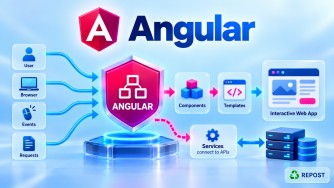


How do you deploy Angular with ASP.NET Core?
Angular and ASP.NET Core are usually two separate parts of the application:
- Angular → frontend UI
- ASP.NET Core Web API → backend/API
- SQL Server → database
There are two common deployment approaches:
- Deploy Angular and ASP.NET Core separately — common for modern production architectures.
- Host the Angular build inside ASP.NET Core — useful when you want one deployable application.
For understanding the complete flow, let's look at both.
1. What does deploying Angular with ASP.NET Core mean?
During development, you commonly run:
Angular
http://localhost:4200

        ↓ HTTP

ASP.NET Core Web API
https://localhost:7001

        ↓

SQL Server
For example:
this.http.get(
  'https://localhost:7001/api/products'
);
In production, both applications need to be built and hosted.
For example:
Browser
   |
   ↓
Angular
https://www.example.com
   |
   | HTTPS
   ↓
ASP.NET Core Web API
https://api.example.com
   |
   ↓
SQL Server
2. Approach 1 — Deploy Angular and ASP.NET Core separately
This is a clean architecture for many production applications.
                    Internet
                       |
             ┌─────────┴─────────┐
             ↓                   ↓
        Angular App        ASP.NET Core API
     www.example.com       api.example.com
             |                   |
             | HTTPS             |
             └─────────→─────────┘
                                 |
                                 ↓
                            SQL Server
Angular can be hosted using:
- IIS
- Nginx
- Azure Static Web Apps
- Azure App Service
- CDN/static hosting
ASP.NET Core can be hosted using:
- IIS
- Azure App Service
- containers
- Linux/Nginx
- other application hosting platforms
3. Simple sample application
Assume we have:
Portfolio/
│
├── Portfolio.Api/
│   ├── Controllers/
│   ├── Program.cs
│   └── appsettings.json
│
└── portfolio-angular/
    ├── src/
    ├── angular.json
    └── package.json
Architecture:
portfolio-angular
       |
       | HTTP
       ↓
Portfolio.Api
       |
       ↓
SQL Server
4. Configure Angular API URL
Don't hard-code the development URL throughout your Angular application.
For example:
environment.ts
export const environment = {
  production: false,
  apiUrl: 'https://localhost:7001/api'
};
Production configuration could use:
export const environment = {
  production: true,
  apiUrl: 'https://api.example.com/api'
};
Then use it from your service:
import { Injectable, inject } from '@angular/core';
import { HttpClient } from '@angular/common/http';
import { environment } from '../environments/environment';

@Injectable({
  providedIn: 'root'
})
export class ProductService {

  private http = inject(HttpClient);

  getProducts() {
    return this.http.get(
      `${environment.apiUrl}/products`
    );
  }
}
Now the Angular application isn't tied to:
localhost:7001in production.
5. Build Angular for production
Run:
ng build --configuration productionor, depending on your configured defaults:
ng buildAngular generates the deployment output.
For a modern Angular project you may see:
dist/
└── portfolio-angular/
    └── browser/
        ├── index.html
        ├── main-XXXX.js
        ├── styles-XXXX.css
        ├── chunk-XXXX.js
        └── ...
You deploy the generated files, not your Angular src directory.
6. Publish ASP.NET Core
From the ASP.NET Core project:
dotnet publish -c Release -o ./publishOutput:
publish/
├── Portfolio.Api.dll
├── Portfolio.Api.exe
├── appsettings.json
├── web.config
└── ...
Now we have two deployment outputs:
Angular
   ↓
dist/portfolio-angular/browser/


ASP.NET Core
   ↓
publish/
7. Deploy both to IIS separately
A typical IIS setup could be:
IIS

Sites
│
├── Portfolio-Web
│      ↓
│   Angular dist/browser
│
└── Portfolio-API
       ↓
    ASP.NET Core publish
URLs:
Angular
https://www.example.com

ASP.NET Core
https://api.example.com
Request flow:
User
 ↓
https://www.example.com
 ↓
IIS
 ↓
Angular index.html
 ↓
Angular starts in browser
 ↓
ProductService
 ↓
https://api.example.com/api/products
 ↓
ASP.NET Core
 ↓
SQL Server
8. Configure CORS in ASP.NET Core
Because these are different origins:
https://www.example.com
https://api.example.com
you normally need to configure CORS on the API.
Program.cs
var builder = WebApplication.CreateBuilder(args);

builder.Services.AddControllers();

builder.Services.AddCors(options =>
{
    options.AddPolicy("AngularApp", policy =>
    {
        policy
            .WithOrigins("https://www.example.com")
            .AllowAnyHeader()
            .AllowAnyMethod();
    });
});

var app = builder.Build();

app.UseHttpsRedirection();

app.UseCors("AngularApp");

app.UseAuthorization();

app.MapControllers();

app.Run();
Avoid using:
.AllowAnyOrigin()without considering the security implications. In production, specify the frontend origins that should be allowed.
9. Angular SPA routing problem in IIS
Suppose Angular has these routes:
export const routes: Routes = [
  {
    path: '',
    loadComponent: () =>
      import('./home').then(m => m.Home)
  },
  {
    path: 'products',
    loadComponent: () =>
      import('./products').then(m => m.Products)
  }
];
The user visits:
https://www.example.com/productsAngular understands /products.
But if the user refreshes that URL, IIS may try to locate a physical resource at:
/productsand return:
404 Not FoundFor a client-side Angular SPA, the server should normally fall back to:
index.htmlfor routes that aren't physical files or API endpoints.
Conceptually:
/products
    ↓
IIS
    ↓
No physical file
    ↓
index.html
    ↓
Angular Router
    ↓
Products component
10. Approach 2 — Host Angular inside ASP.NET Core
Another approach is to serve Angular's generated files directly from ASP.NET Core.
Architecture:
Browser
   |
   ↓
ASP.NET Core
   |
   ├── Angular static files
   |
   ├── /api/products
   |
   └── SQL Server
You then deploy essentially one ASP.NET Core application.
11. Build Angular
Run:
ng build --configuration productionSuppose Angular generates:
dist/
└── portfolio-angular/
    └── browser/
        ├── index.html
        ├── main-XXXX.js
        ├── styles-XXXX.css
        └── chunk-XXXX.js
Copy the contents of the browser output into the ASP.NET Core project's:
wwwroot/Result:
Portfolio.Api/
│
├── Controllers/
│
├── wwwroot/
│   ├── index.html
│   ├── main-XXXX.js
│   ├── styles-XXXX.css
│   └── chunk-XXXX.js
│
├── Program.cs
└── appsettings.json
12. Configure ASP.NET Core
Example:
var builder = WebApplication.CreateBuilder(args);

builder.Services.AddControllers();

var app = builder.Build();

app.UseHttpsRedirection();

app.UseDefaultFiles();
app.UseStaticFiles();

app.UseAuthorization();

app.MapControllers();

app.MapFallbackToFile("index.html");

app.Run();
The important pieces are:
app.UseDefaultFiles();
app.UseStaticFiles();
and:
app.MapFallbackToFile("index.html");13. Why UseStaticFiles()?
Angular generates static browser resources:
index.html
main-XXXX.js
styles-XXXX.css
chunk-XXXX.js
images
fonts
...
ASP.NET Core needs to serve these files.
That's what:
app.UseStaticFiles();does.
For example:
Browser
   ↓
GET /main-ABC123.js
   ↓
ASP.NET Core Static File Middleware
   ↓
wwwroot/main-ABC123.js
14. Why MapFallbackToFile("index.html")?
Suppose the Angular router contains:
{
  path: 'products',
  loadComponent: () =>
    import('./products').then(m => m.Products)
}
The user directly opens:
https://www.example.com/productsASP.NET Core doesn't have:
/productsas a controller or physical file.
Therefore:
app.MapFallbackToFile("index.html");returns Angular's:
index.htmlThen Angular Router handles:
/productsFlow:
GET /products
      ↓
ASP.NET Core
      ↓
No API endpoint
No static file
      ↓
Fallback
      ↓
index.html
      ↓
Angular starts
      ↓
Angular Router
      ↓
Products component
This is a very important interview point.
15. Calling the API when both use the same host
When Angular and ASP.NET Core are served from the same origin:
https://www.example.comAngular can call:
this.http.get('/api/products');instead of:
this.http.get(
  'https://api.example.com/api/products'
);
The request becomes:
https://www.example.com/api/productsFlow:
Browser
   |
   ↓
https://www.example.com
   |
   ├── /
   │    ↓
   │  Angular
   │
   └── /api/products
        ↓
      ASP.NET Core Controller
        ↓
      SQL Server
One benefit is that you avoid a cross-origin request between frontend and API.
16. Full simple example
Angular product.service.ts
import { Injectable, inject } from '@angular/core';
import { HttpClient } from '@angular/common/http';

@Injectable({
  providedIn: 'root'
})
export class ProductService {

  private http = inject(HttpClient);

  getProducts() {
    return this.http.get<Product[]>('/api/products');
  }
}

export interface Product {
  id: number;
  name: string;
  price: number;
}
ASP.NET Core ProductsController.cs
using Microsoft.AspNetCore.Mvc;

namespace Portfolio.Api.Controllers;

[ApiController]
[Route("api/[controller]")]
public class ProductsController : ControllerBase
{
    [HttpGet]
    public IActionResult Get()
    {
        var products = new[]
        {
            new
            {
                Id = 1,
                Name = "Laptop",
                Price = 50000
            },
            new
            {
                Id = 2,
                Name = "Mouse",
                Price = 1000
            }
        };

        return Ok(products);
    }
}
Program.cs
var builder = WebApplication.CreateBuilder(args);

builder.Services.AddControllers();

var app = builder.Build();

app.UseHttpsRedirection();

app.UseDefaultFiles();
app.UseStaticFiles();

app.UseAuthorization();

app.MapControllers();

app.MapFallbackToFile("index.html");

app.Run();
Build Angular:
ng build --configuration productionCopy the generated browser files into:
wwwroot/Then publish ASP.NET Core:
dotnet publish -c ReleaseThe published application now contains both the backend and Angular static files.
17. Complete request flow
When the user opens:
https://www.example.com/productsthe flow is:
Browser
   |
   | GET /products
   ↓
ASP.NET Core
   |
   | fallback
   ↓
index.html
   |
   ↓
Angular starts
   |
   ↓
Angular Router
   |
   ↓
Products Component
   |
   ↓
ProductService
   |
   | GET /api/products
   ↓
ASP.NET Core ProductsController
   |
   ↓
SQL Server / data source
   |
   ↓
JSON
   |
   ↓
Angular
   |
   ↓
Products displayed
18. Separate deployment vs combined deployment
| Feature | Separate | Combined |
|---|---|---|
| Angular hosting | Separate static/web host | ASP.NET Core static files |
| ASP.NET Core | Separate API | Same application |
| Typical API URL | api.example.com |
/api/... |
| CORS | Usually required across origins | Usually not needed for same-origin calls |
| Deployment units | Two | One |
| Independent scaling | Easier | Less independent |
| SPA fallback | Configure frontend host | MapFallbackToFile() |
| Architecture | More decoupled | Simpler operationally |
Neither approach is universally correct. It depends on deployment and scaling requirements.
Key Points
- Angular and ASP.NET Core are built independently.
- Build Angular using:
ng build --configuration production- Publish ASP.NET Core using:
dotnet publish -c Release- Angular's
distoutput contains browser-deployable files. - ASP.NET Core's publish directory contains the backend deployment.
- They can be hosted separately.
- Angular can also be copied into ASP.NET Core's
wwwroot. UseStaticFiles()serves Angular's generated static resources.MapFallbackToFile("index.html")allows Angular client-side routes to work on direct navigation/refresh.- Separate frontend/API origins generally require appropriate CORS configuration.
- Same-origin hosting can use API calls such as:
this.http.get('/api/products');Interview Questions and Answers
1. How do you deploy Angular with ASP.NET Core?
Build Angular using ng build and publish ASP.NET Core using dotnet publish. They can either be deployed separately or Angular's generated browser files can be served from ASP.NET Core's wwwroot.
2. Where do you place Angular files when hosting them through ASP.NET Core?
Usually inside:
wwwroot/For example:
wwwroot/
├── index.html
├── main-XXX.js
├── styles-XXX.css
└── chunk-XXX.js
3. Why do we use UseStaticFiles()?
It enables ASP.NET Core to serve static resources such as Angular's JavaScript, CSS, images, and other browser assets.
4. Why is MapFallbackToFile("index.html") needed?
It supports Angular client-side routing. Requests that aren't matched by an API endpoint or static file can fall back to index.html, allowing Angular Router to process routes such as /products.
5. Do Angular and ASP.NET Core have to be hosted together?
No. They can be hosted separately or combined into one deployment.
6. When is CORS required?
CORS matters when the browser makes cross-origin requests, for example:
Angular: https://www.example.com
API:     https://api.example.com
The ASP.NET Core API must allow the appropriate Angular origin.
7. Does Angular connect directly to SQL Server?
No.
The normal architecture is:
Angular
   ↓
ASP.NET Core Web API
   ↓
SQL Server
Database credentials and database access remain on the server.
8. What is the difference between ng build and dotnet publish?
ng build creates Angular's browser/server build artifacts, while dotnet publish produces the files required to deploy the ASP.NET Core application.
9. Can IIS host both Angular and ASP.NET Core?
Yes. They can be configured as separate IIS applications/sites, or ASP.NET Core can serve the Angular static build files.
10. What is a good interview answer?
Angular is built into optimized static assets using
ng build, while ASP.NET Core is published usingdotnet publish. They can be deployed separately, with Angular calling the API over HTTPS, or Angular's build output can be placed in ASP.NET Core'swwwrootand served using static-file middleware. For Angular SPA routes, ASP.NET Core can useMapFallbackToFile("index.html").